


Artrace: AR Easy Draw & Sketch
4.63.48K Reviews
App Specs
- Version
- 1.9.69
- Updated On
- License
- Free
- Downloads
- 50,000,000+
- Developer
- Braly JSC
- Categories
- Art & Design
- Platform
- Android, iOS
Screenshots
 Analysis by AppCompare
I tend to judge drawing apps by whether they help me get from “I’d like to draw that” to an actual pencil on paper without making the setup feel like another project. AR Drawing - Sketchar has a clear focus: it uses augmented reality to guide a drawing on a real surface. That makes it more hands-on than a conventional sketching app, though it also means your phone, camera view, paper, and drawing position all have to cooperate. For a beginner who wants a visual starting point rather than a blank page, that trade-off can be worthwhile.
Getting Started with AR Drawing - Sketchar
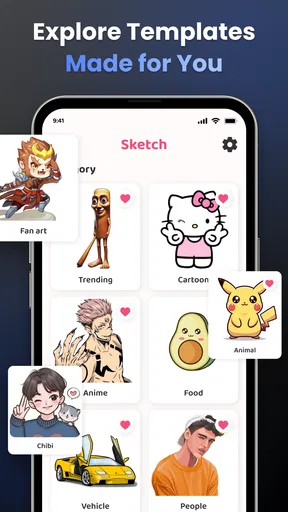
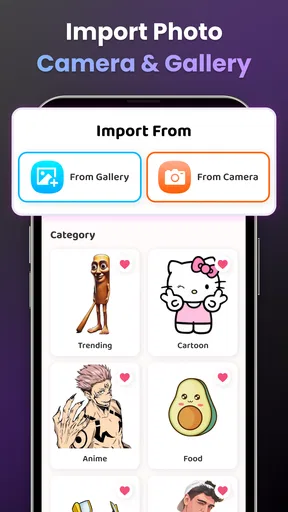
The first thing I noticed when I opened the app was its super sleek interface. It's designed to be user-friendly, so even if you're a newbie, you'll find your way around pretty quickly. You start by selecting a drawing lesson, and there are tons of options to choose from. Whether you're into animals, portraits, or abstract designs, Sketchar has got you covered.
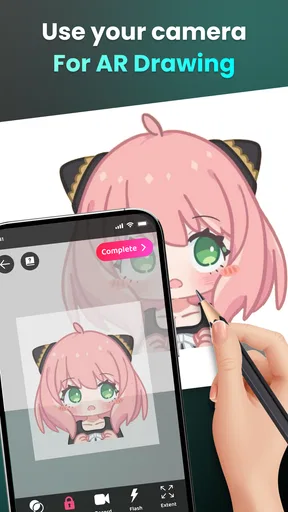
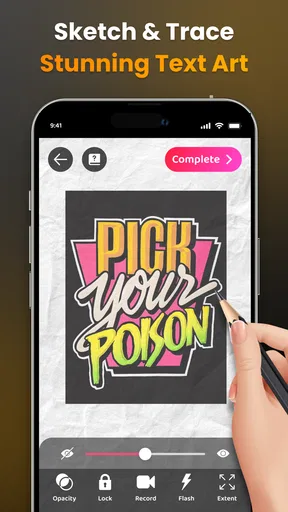
The magic happens when you switch to the AR mode. The app uses your phone's camera to project an outline of your chosen image onto a piece of paper. All you have to do is trace along the lines. It feels a bit like magic, especially when you see your drawing come to life. The AR feature is quite precise, and it really helps in understanding the proportions and details of the image.
The Learning Curve
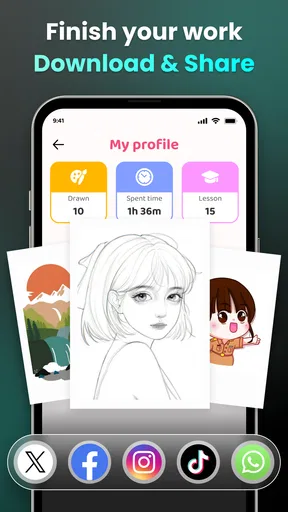
Now, you might be thinking, "Is it really that easy?" Well, yes and no. While the app makes it simple to start drawing, mastering it still requires practice. But that's the beauty of it. The app encourages you to keep improving without overwhelming you. Plus, it tracks your progress, so you can see how far you've come, which is a neat little motivator.
And if you're feeling extra creative, the app also includes a feature for creating your own sketches. You can snap a photo of anything and turn it into a drawing lesson, which is perfect for personalizing your art journey.
Making the AR Setup Work
The practical difference between this and drawing from a reference image is where your attention goes. With a picture on a screen, I can glance between the image and paper; with the AR guide, the outline sits in the camera view while I work. That can make it easier to place a shape and judge its proportions, but it does not teach every part of drawing by itself. Tracing a contour can help you notice angles and spacing; choosing what to simplify, where to add shading, and how to make a line expressive still takes your own decisions.
A useful way to get more learning from a guided sketch is to treat the projected lines as a starting scaffold, not a finished answer. I would first trace the large outer shapes lightly, then look at the paper directly and check whether the whole drawing sits comfortably on the page. Only after that would I commit to smaller details. This reduces the temptation to chase every tiny line before the overall proportions feel right, and it makes the exercise more useful than simply copying the outline as quickly as possible.
Worth Reading Before You Choose

Flipboard Shows What News Apps Must Do Beyond the Feed

Switching to Android Auto Means Rethinking Your Driving Routine

Google Calendar Makes a Crowded Week Easier to Manage

Ludo King Makes the Most of the Minutes Between Plans

Baby Panda World Brings Quick Play to Modern Phones, but Its Game Library Feels Busy

ESPN’s Live Game View Makes Following Close Games Easier
For an everyday use, picture a quiet evening when you have a few minutes and want to draw a pet, a favorite object, or a simple character but cannot work out how to begin. Choosing a lesson gives you a concrete first step, while making a lesson from a photo lets you bring a subject you care about into the practice. The second route is especially appealing if generic practice subjects do not hold your attention. It can turn a snapshot into a drawing prompt, although the result still depends on how patiently you trace and refine it.
Speed, Stability, and the Real-World Workflow
In terms of speed, the app's guided approach can get you to a first mark faster than searching for a reference, resizing it, and trying to copy it by eye. That is a workflow advantage, not a promise that every drawing session will feel instant. The camera view has to be positioned so the guide stays useful while you draw, and a cramped table or awkward phone angle can slow you down. I would set up the paper and phone before choosing a detailed image, rather than interrupting the drawing repeatedly to rearrange everything.
The most demanding moments are likely to be the ones that keep you in the camera view for a while: tracing a detailed subject, adjusting your hand position, or making a custom exercise from a photo. In those situations, the screen is doing more than displaying a still reference, so I would expect the experience to feel more involved than ordinary note-taking or looking at a picture. I would also keep the device steady and the work area well arranged. Those are simple habits, but they reduce the chance that a shifting view becomes more distracting than the drawing itself.
AR guidance is naturally more sensitive to setup than a standard drawing lesson viewed on-screen. If the outline seems difficult to follow, I would check the position of the phone and paper before assuming the lesson is the problem. A stable support and enough room to move your drawing hand can make a noticeable difference to comfort. The app is most convincing when the camera can remain aimed at the page while you work; if you need a completely hands-free, fixed projection or want to draw while travelling, a regular reference image may be less fussy.
Why You'll Love It
Sketchar is not just about drawing; it's about learning and having fun. The app offers a variety of challenges and achievements to keep things interesting. It even has a community feature where you can share your creations and get inspired by others. It’s like being part of a global art club!
One thing to keep in mind is that while the app is free to download, some features require a subscription. However, considering the quality and educational value, it seems like a fair deal. Plus, there are regular updates, so you always have something new to explore.
Who It Suits—and When Another Tool Is Better
I would point a curious beginner toward this app if they want a guided route into drawing and enjoy learning by doing. It can also suit someone who already sketches but gets stuck at the blank-page stage, since lessons and photo-based prompts offer a subject to start from. The key appeal is the bridge between a phone-based visual guide and marks made on paper. That is different from practicing entirely on a tablet, where the screen itself is the canvas.
By comparison, a basic drawing app is better if you want to paint digitally, undo freely, or work with layers and brushes as your main tools. A printed reference or ordinary image viewer is often simpler if you already know how to measure proportions and just need a picture to copy. Sketchar’s AR approach makes the most sense when direct visual guidance is what you need; it is less compelling if you dislike tracing or want every part of the process to be freehand. I would use it to build confidence and observation, then occasionally redraw the same subject without the guide to see what I have learned.
It is also worth being realistic about what progress tracking and challenges can do. They can give practice a sense of direction, but they cannot replace the slow work of repeating shapes, noticing mistakes, and trying again. If your goal is to develop a personal style, I would treat guided lessons as exercises rather than templates to imitate forever. If your main goal is a polished digital illustration, this is not the tool I would choose first.
Cost, Compatibility, and My Verdict
Sketchar is a free Art & Design app from Braly JSC, with optional in-app purchases priced from $2.99 to $29.99 per item. It has a 4.2 average from around 132 thousand ratings, and it has been installed over 10 million times. Those figures suggest broad interest, but they do not tell you whether the AR workflow will suit your room, drawing habits, or device, so I would judge it by trying a simple lesson before investing in optional content.
The app is rated for Everyone and supports Android 7.0 and later; its current version is 1.9.42. That gives people on older supported Android devices a possible route in, but version compatibility alone does not guarantee that a particular phone will feel comfortable for extended camera-based drawing. If your screen is small or the device is awkward to position, the practical experience may be less pleasant even if the app runs. For anyone considering longer sessions, I would test the camera-guided setup with a straightforward sketch first and see whether the phone can stay put without getting in the way.
My overall take is that Sketchar is most useful as a confidence-building drawing companion, not as a substitute for every art tool or for practice. Its strongest idea is making a subject easier to place on paper, and its biggest trade-off is that the AR workflow asks you to arrange your device and workspace. If that sounds manageable, it offers a friendly way to get started, explore personal photo prompts, and make drawing feel less intimidating. If you prefer freehand work, digital painting, or a reference that never depends on camera positioning, another approach will probably fit better. For me, the best reason to try it is simple: it can help turn a vague urge to draw into a specific, practical exercise.
Pros
- Easy-to-use interface for beginners.
- Wide variety of drawing tools available.
- Augmented reality feature enhances learning.
- Regular updates with new features.
- Supports offline mode for sketching anywhere.
Cons
- Requires a stable internet for some features.
- Subscription model can be pricey.
- Augmented reality may drain battery quickly.
- Limited free features without subscription.
- May not work well on older devices.
FAQs for Artrace: AR Easy Draw & Sketch
What is AR Drawing - Sketchar App and how does it work?
AR Drawing - Sketchar is an innovative application that combines augmented reality (AR) with drawing tools to help users learn and improve their drawing skills. By projecting images onto a real-world canvas using your device’s camera, it allows you to trace and refine your artwork in a more interactive and engaging way.
Is AR Drawing - Sketchar suitable for beginners?
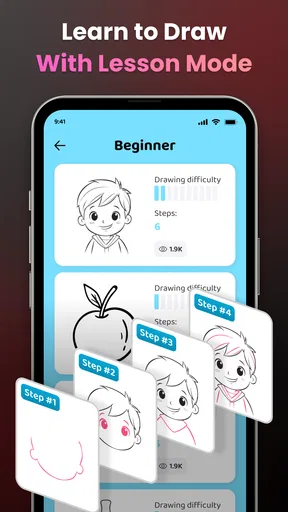
Yes, AR Drawing - Sketchar is designed for users of all skill levels, including beginners. The app offers guided tutorials and step-by-step instructions, making it easy for anyone to start practicing and improving their drawing skills. Its user-friendly interface ensures that even novice artists can navigate the app with ease.
What devices are compatible with AR Drawing - Sketchar?
AR Drawing - Sketchar is available on both Android and iOS devices. However, since it uses augmented reality technology, it requires devices with AR capabilities. It's important to check your device's specifications to ensure compatibility with the app before downloading.
Does AR Drawing - Sketchar have any in-app purchases?
Yes, while AR Drawing - Sketchar offers a variety of free features, it also includes in-app purchases. These purchases may include advanced tools, additional tutorials, or premium content that can enhance the drawing experience. Be sure to review these options if you’re interested in accessing more features.
How user-friendly is AR Drawing - Sketchar for different age groups?
AR Drawing - Sketchar is designed to be user-friendly for a wide range of age groups, from young children to adults. The app provides a simple and intuitive interface, making it accessible to younger users while offering more complex features that appeal to older, more experienced artists. Parental guidance is recommended for younger users.


